User Feedback
6.1 Report Malicious
CyberCheck360 now includes the ability to report suspicious, or malicious websites directly from warning page and Browser Extension dashbaord (When configured to Banner Settings).
When to Use
Use this option when you encounter a site that appears unsafe, shows signs of phishing, or behaves suspiciously (e.g., deceptive login pages, fake brand impersonations, or scam-like content).
How to Report
-
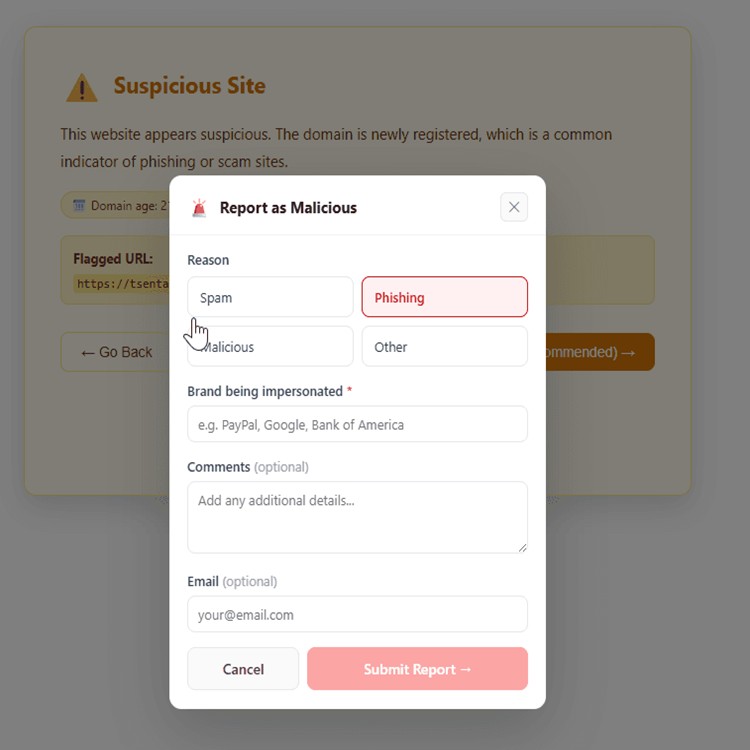
On the warning page (Suspicious Site), select Report Malicious.
-
Choose a Reason:
- Phishing – Site pretending to be another brand or service.
- Spam – Unwanted or irrelevant promotions or redirects.
- Malicious – Contains malware, harmful downloads, or exploits.
- Other – Specify a custom reason.
-
If Phishing is selected, you must provide the Brand being impersonated (e.g., PayPal, Facebook, Bank of America).
-
Optionally, include additional comments and your email for follow-up.
-
Submit your report using Submit Report →.
✅ Your report is securely sent to our threat intelligence team for review and action.
6.2 Report a Problem with a Phishing Warning
If you believe a Possible Phishing Detected warning has been incorrectly triggered on a site you trust, you can report it directly from the warning page.
When to Use
Use this option when CyberCheck360 has flagged a site as a possible phishing attempt, but you believe the warning is incorrect — for example, if the site is a legitimate service you regularly use.
How to Report
- On the Possible Phishing Detected warning page, click Report a problem with this warning (shown at the bottom of the page).
- Confirm the flagged URL.
- Choose the reason why you believe the detection is incorrect:
- I own this domain
- Widely known brand
- I use this regularly
- Optionally, add more context or your email address for follow-up.
- Submit the report using Submit Report →.
✅ Once submitted, you will see a "Request received" confirmation. ⏱ Typical review time: under 24 hours.
You may optionally choose "I understand the risk" to proceed and add the site to your whitelist while the review is in progress.
 Chrome
 Firefox
6.3 Report False Positive
If a legitimate site is incorrectly flagged as malicious, users can easily report a false positive from the warning page.
How to Report a False Positive
-
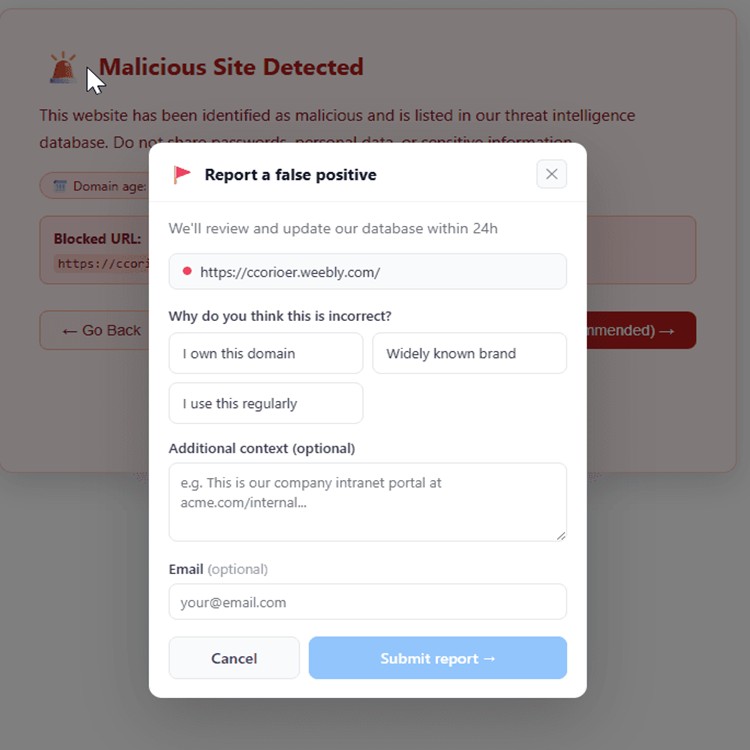
On the blocked warning page, click Thump down.
-
Confirm the flagged URL.
-
Choose the reason why you believe the detection is incorrect:
- I own this domain
- Widely known brand
- I use this regularly
-
Optionally, add more context or your email for follow-up.
-
Submit the report using Submit Report →.
✅ Once submitted, you will see a "Request received" confirmation. ⏱ Typical review time: under 24 hours.
- You may optionally choose "I understand the risk" to proceed and add the site to your whitelist while the review is in progress.
6.4 Reporting Safe Sites
From the browser extension dashboard, users can also mark a currently visited site as Report Malicious directly:
- Open the dashboard from the browser toolbar.
- View the current site's verdict (**Safe / Suspicious).
- Use Report Malicious to flag a site.
6.5 Summary
| Feature | Location | Purpose |
|---|---|---|
| Report Malicious | Warning page / Dashboard | Flag phishing, spam, or harmful sites |
| Report a Problem with Phishing Warning | Possible Phishing Detected warning page | Report an incorrect phishing detection |
| Report False Positive | Warning page | Rectify mistaken detections |