Getting Started
3.1 Signing In
The CyberCheck360 Link Inspector is free to use. No sign-in is required, the extension works straight after installation.
Simply click the CyberCheck360 icon in the toolbar at any time to open the popup and see the current site's verdict.
 Chrome
 Firefox
3.2 Extension Interface Walkthrough
The popup has two tabs: Security Status and Settings.
3.3 Security Status Tab
This tab shows the result for the website you are currently on.
| Field | Description |
|---|---|
| Current Site | The domain of the page you have open |
| Verdict | ✅ Safe, 🟢 Whitelisted, ⚠️ Caution, ⛔ Unsafe |
| Domain Age | How long the domain has been registered. Recently registered domains show a ⚠️ New tag. Age is shown in days, or in months and days for older domains. Shown for all verdict types. |
| Scanned At | When the last check was run |
Site Controls:
- Add to Whitelist — Mark this site as trusted so it is never inspected again. See Whitelisting a Domain below for full details.
- Inspect page — Run a fresh check on the current page manually.
- Report Malicious — Available when the verdict is Safe, Whitelisted, or Caution. Use this to flag a page you believe is malicious despite the current verdict.
3.4 Report Malicious
When you click Report Malicious, a form appears with the following fields:
| Field | Details |
|---|---|
| Reason (required) | Choose one: Spam, Phishing, Malicious, or Other |
| Brand being impersonated (required if Phishing is selected) | Enter the brand name being impersonated, e.g. PayPal, Google |
| Comments (optional) | Any additional details about the suspicious page |
| Email (optional) | Your email address |
Click Submit to send the report, or Cancel to close the form.
Note: The "Brand being impersonated" field is only required when Phishing is selected as the reason.
PAUSE controls (at the bottom of the popup):
| Button | What it does |
|---|---|
| 10 min | Pauses link inspection for 10 minutes |
| 20 min | Pauses link inspection for 20 minutes |
| 60 min | Pauses link inspection for 60 minutes |
| Disable | Turns off link inspection until you switch it back on |
When a timed pause is running, the PAUSE buttons are replaced by a countdown (e.g. "Paused — 10 min left") and a green ▶ Resume button. Click Resume at any time to turn link inspection back on immediately.
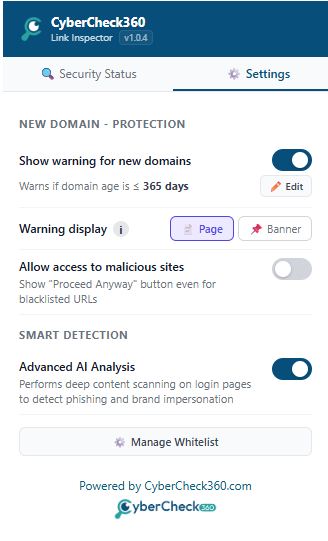
Settings Tab
3.5 Warning Behaviour
| Setting | Default | Description |
|---|---|---|
| Warning Display | Page | Page = full-screen warning (recommended). Banner = a strip at the top of the page. |
| Show warning for new domains | On | Turn this Off to stop scanning new domains (Not Recommended) |
| Domain Age Threshold | 365 days | How old a domain needs to be before it is considered established. Any value from 0 to 365 days. |
| Allow access to malicious sites | Off | When On, a "Proceed Anyway (Not Recommended)" button is shown on threat warnings |
| Manage Whitelist | — | View and remove sites you have trusted |
3.6 Smart Detection
| Setting | Default | Description |
|---|---|---|
| Advanced AI Analysis | Off | When enabled, performs deep content scanning on login pages to detect phishing and brand impersonation. Recommended for enhanced protection against phishing threats. |
Not sure if a link is safe?
Run it through our free link checker and get an instant safety verdict before anyone on your team opens it.