Scan Results Tab
Scan Results Tab
The Scan Results tab provides a threat assessment of all content found within the email body.
Overall Verdict Banner
A colour-coded banner at the top of the Scan Results tab summarises the threat level of the email:
| Verdict | Colour | Meaning |
|---|---|---|
| Safe | Green | No threats detected; No Banner displayed |
| Proceed with Caution | Orange/Yellow | Potential indicators of risk; review before acting |
| Unsafe | Red | Confirmed malicious content detected |
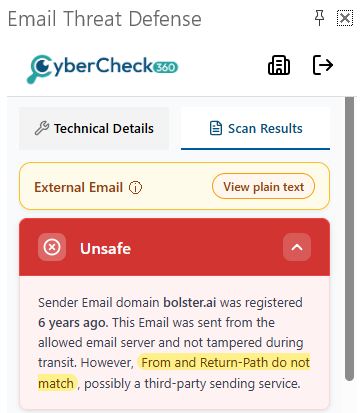
Outlook Add-on - Verdict-Banner |
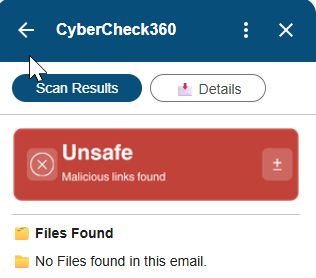
Gmail Add-on - Verdict-Banner |
External Email Notice
📌 This section is displayed only for emails received from outside your organisation.
When an email originates from an external sender — a domain different from the recipient's organisation — the add-on displays an External Email indicator as a prominent notice at the top of the Scan Results tab. This serves as an immediate visual cue that the message did not come from a trusted internal source and warrants closer scrutiny before any links or attachments are interacted with. Internal emails within the same organisation do not trigger this notice.
Note - This feature is currently not available in Google Add-on.
Files Found
Lists any attachments found in the email.
- If no attachments are present, the section displays: "No files found in this email."
- If attachments are present, each file is listed with its filename.
| Action | Login | Non-Login |
|---|---|---|
| Open attachment | ✅ Available | ❌ Not available — sign in to open attachments |
📌 Users also have the option to view the email in plain text directly from the add-on panel — useful for inspecting the raw message content when formatted rendering obscures underlying links or suspicious elements.
Links Found
Lists all hyperlinks detected in the email body. Each link is colour-coded based on its threat classification:
| Indicator | Colour | Meaning |
|---|---|---|
| Benign | 🟢 Green | Link is confirmed safe |
| Malicious | 🔴 Red | Link is confirmed malicious |
| Unknown | ⚪ Grey | Link has not yet been classified |
The counts for each category (e.g., Benign (1) · Malicious (0) · Unknown (0)) are shown at the top of the section for a quick summary.
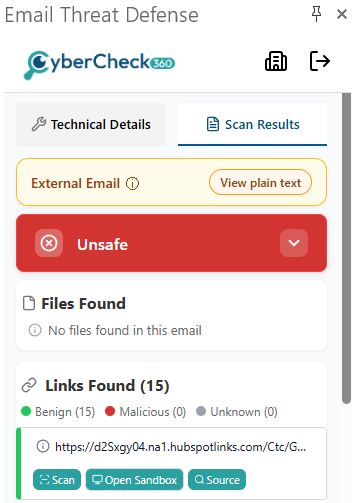
Outlook Add-on - Links found in email |
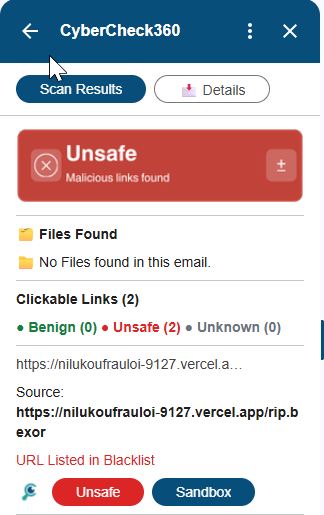
Gmail Add-on - Links found in email |
Available Actions per Link
| Action | Description | Login | Non-Login |
|---|---|---|---|
| Scan | Performs a deep scan of the URL against the CyberCheck360 threat intelligence database | ✅ Available | ❌ Disabled |
| Open Sandbox | Opens the link in an isolated secure browser to safely preview the destination without risk | ✅ As per plan | ⚠️ 3 sessions/day (shared) |
| Locate | Identifies exactly where in the email the link is embedded — e.g., hidden under an image, button, or anchor text | ✅ Available | ✅ Available |
| Verify | Checks the link against the intelligence database and updates its colour indicator: 🟢 Benign, ⚪ Unknown, or 🔴 Malicious | Not Applicable | ✅ Available |
Note All Links are already verified for login users (based on their plan). Verify link is not applicable for login user.
Verify All
A Verify All button at the top-right of the Links Found section runs the Verify action on all detected links simultaneously, updating all colour indicators at once.
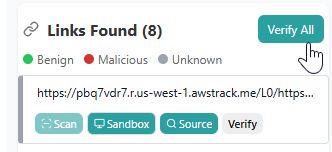
Outlook Add-on - Verify all Links |
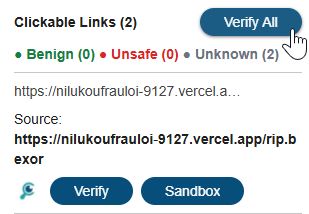
Gmail Add-on - Verify all Links |
Open in Sandbox
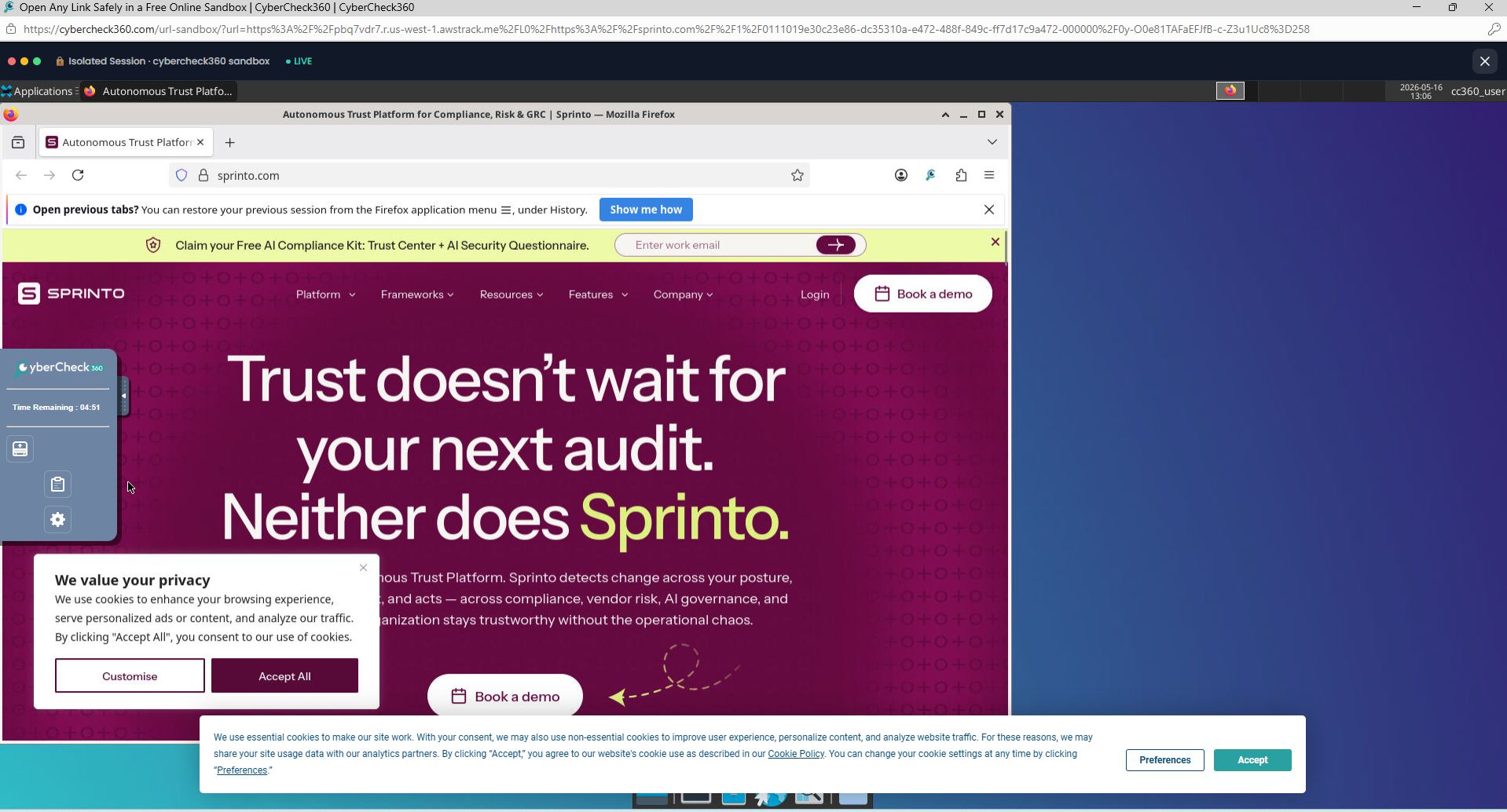
The Open in Sandbox feature launches a suspicious URL inside a fully isolated, secure virtual browser environment. This allows you to safely preview the destination website — including any redirect chains, deceptive landing pages, or malicious payloads — without exposing your device, browser, or network to any risk.
Session Duration
⚠️ Each sandbox session lasts 5 minutes. Once the session timer expires, the sandbox environment is automatically terminated.
Plan your inspection accordingly. If you need to examine multiple pages or follow redirect chains, do so within the 5-minute window.
Session Limits
| User Type | Sandbox Access |
|---|---|
| Non-Login (Guest) | 3 free sessions per day — shared across the CyberCheck360 add-on and the CyberCheck360 web platform. Every sandbox session you open, regardless of where you open it, counts toward the same daily limit. |
| Login (Authenticated) | Number of daily sessions is determined by your active subscription plan. Higher-tier and organisation plans provide significantly more sessions. |
Important for Non-Login users: The 3 daily sessions are shared across all platforms. If you open 2 sandbox sessions from the CyberCheck360 website and 1 from the Outlook add-on, you will have consumed your full daily allowance. There is no separate quota per platform.
Tip: Use your sandbox sessions on the links that are most suspicious. To unlock additional sessions, sign in or switch to an organisation account with a higher-tier plan.
Locate a Link
The Locate button helps you find exactly where in the email a URL is physically placed. This is especially valuable when a link is not shown as plain text but is instead:
- Hidden under an image — The entire image is a clickable link, with no visible URL.
- Embedded in a button or banner — The URL is behind a styled graphic element.
- Disguised as anchor text — The displayed text is different from the actual destination URL (e.g., the text says "Click here to verify your account" but leads to a phishing site).
When you click Locate, the add-on highlights or indicates the specific element — image, button, or text block — in the email that contains the link. This gives you the full context of how the link is presented before you decide whether to interact with it.
Tip: Always use Locate on links classified as Unknown or Malicious to understand if the URL is being intentionally hidden from plain sight — a common tactic in phishing emails.
Ready to add click-time protection to your email security stack?
See how CyberCheck360 closes the gap that advanced phishing attacks exploit.