CyberCheck360 — Email Add-on
Reporting an Email
Reporting an Email
Logged-in users can report a suspicious email directly from the add-on.
To report an email:
- Click the floating action button (➜) at the bottom-right of the panel.
- Select Report Email from the menu.
- In the Report Email dialog, select the reason from the dropdown:
- Spam
- Phishing
- Malicious
- Others
- Optionally, check Include attachment to include the email's attachment as part of the report.
- Review and accept the terms by checking the following checkbox:
Email content will be shared with CyberCheck360 or your organisation's designated security provider for threat analysis.
Note: You must tick this checkbox to enable the Report Email button. If the checkbox is left unchecked, the Report Email button remains greyed out and the report cannot be submitted.
- Click Report Email to submit, or Cancel to dismiss.
Non-Login behaviour: The Report Email option is not available in guest mode. Sign in to access this feature.
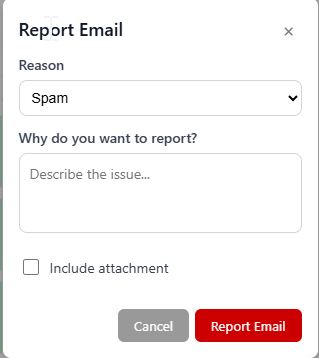
Outlook Add-on - Reporting-email |
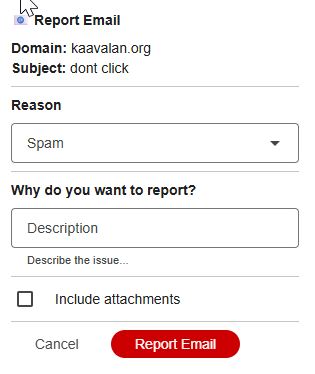
Gmail Add-on - Reporting-email |