Outlook Add-ons
Outlook Add-ons
The Cybercheck360 Outlook Add-in (Scan Email) allows you to analyze emails directly inside Outlook. With just a few clicks, you can check links, headers,and hidden details to stay protected from phishing and suspicious emails.
Key Features
Scan Links - Quickly extract and check all links in an email to detect phishing or malicious websites.
Phishing & Domain Checks – Instantly see if a link is safe, along with details about the domain, registrar, and expiry.
Live Screenshot & Sandboxing – Safely preview suspicious websites through a screenshot and secure sandbox session.
Scan Headers – Verify sender authenticity with SPF, DKIM, DMARC, and spoofing checks.
Installing the Add-ons
- Open Outlook on your desktop.
- Go to the All-apps option -> Path: Home → Get all-apps.
- In the search bar, type
Scan Email. - Click Add to install the add-in.
- Once installed, you’ll see the Scan email icon appear in your Outlook toolbar (
Screenshot below).
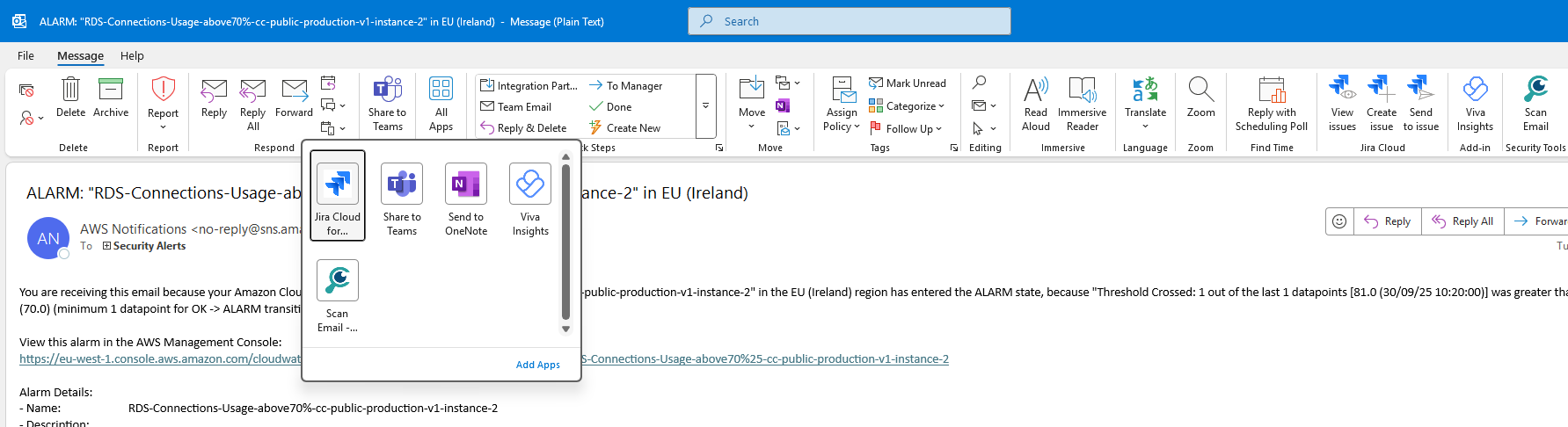
Opening the Add-in in Outlook
- Open any email in Outlook.
- Click on the Scan Email icon from the toolbar.
- A panel will open inside Outlook.
- Login with your Cybercheck360 credentials to start using the features.
After successful login, we will see two main options:
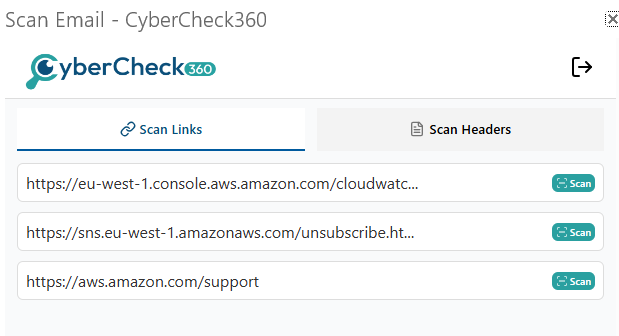
Scan Links
- The Scan Links feature extracts all
web linksfrom the selected email. - Each link will be shown separately with an option to scan it further.
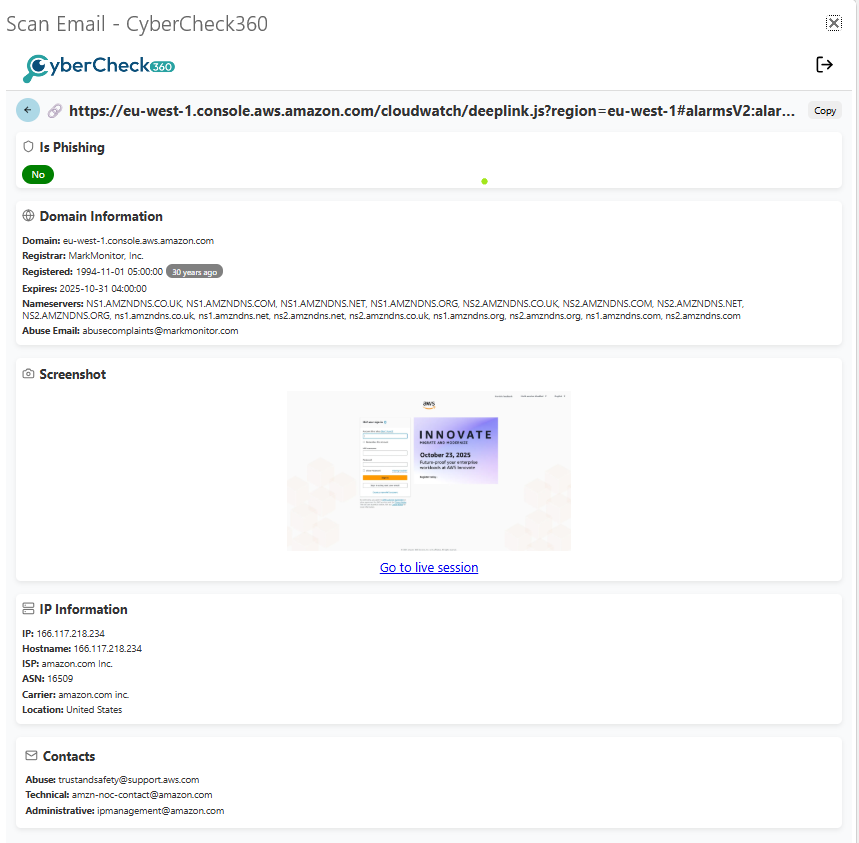
- When you scan a link, Cybercheck360 provides detailed results in the following categories:
- Is Phishing: Yes or no. Clearly tells you if the link is safe or malicious.
- Domain Information: Shows details like domain name, registrar, registration/expiry dates, nameservers, and abuse contact email.
- Screenshot & add-on: Provides a live screenshot of the website and offers a secure and box session to explore the website safely.
- IP Information: Displays IP address details, ASN (Autonomous System Number), and location related to the URL.
- Contacts: Lists any contact details linked with the domain.
This helps to decide whether it’s safe to interact with the website or not. (Screenshot below)
Scan Header
The Scan Header option helps you look deeper into the technical details of an email. It breaks down the email header into easy-to-read categories, helping you decide whether an email is genuine or suspicious. The results are shown in four sections:
1. Validation
This section checks if the email passed important security tests.
- SPF (Sender Policy Framework): Verifies if the email is sent from an allowed server for that domain.
- DKIM (DomainKeys Identified Mail): Confirms that the email content was not changed during delivery.
- DMARC (Domain-based Message Authentication, Reporting & Conformance): Ensures SPF and DKIM checks align with the domain’s policy.
- Spoofing Check: Detects if someone is pretending to send emails on behalf of a trusted sender.
Note: Each check will show True or False. A failed check can indicate the email might be unsafe.
2. Basic Info
Here you’ll find the simple details of the email:
- From – Who sent the email.
- To – Recipient of the email.
- Subject – The subject line of the email.
- Date – When the email was sent.
- Return-Path – The technical address where replies or bounces go.
3. Sender Domain Details
This section gives more background about the sender’s domain:
- Domain name
- Registrar (who registered the domain)
- Registration and expiry dates
- Other related domain details
This helps you understand whether the sender’s domain looks legitimate or suspicious. Click the “View More” button to expand this section.
4. Received Path
Sometimes you may want to see the full journey of the email. this section shows the path the email took from the sender to your inbox. We can see which servers it passed through, the protocols used, and the dates/times of each step. This gives full transparency into how the email traveled.
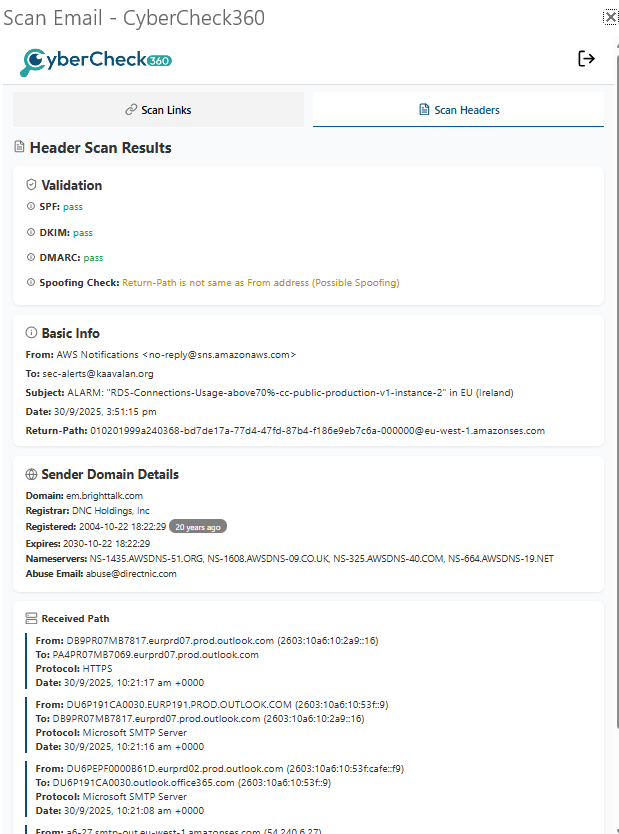
By reviewing these categories, you can quickly spot red flags in suspicious emails. If validation fails or domain details look unusual, it may be a sign of phishing or spoofing.