CyberCheck360 — Email Add-on
Getting Started with Add-on
Getting Started
When you open an email and launch the CyberCheck360 add-on, the Sign In screen appears.
Sign In
Users can authenticate using one of two methods:
- Email & Password — Enter your registered email address and password, then click Sign In.
- Sign in with Microsoft — Use your Microsoft account for single-click authentication (recommended for Outlook users).
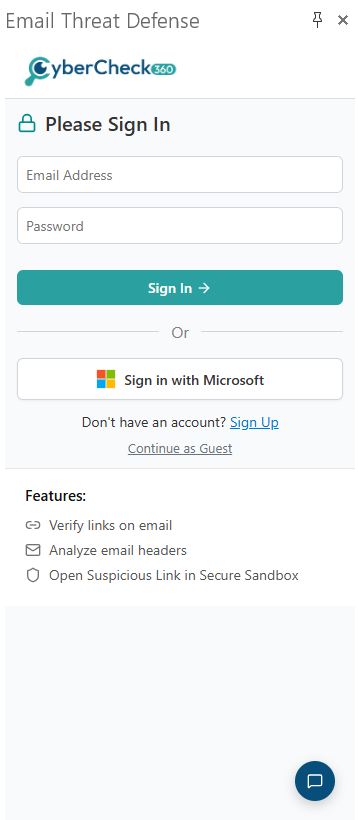
Outlook Add-on - Login |
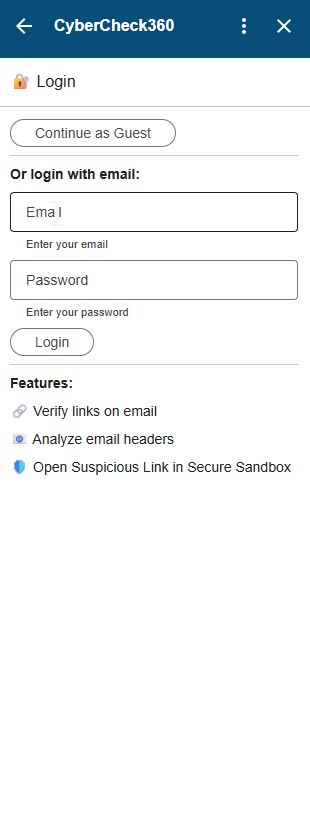
Gmail Add-on - Login |
Ready to add click-time protection to your email security stack?
See how CyberCheck360 closes the gap that advanced phishing attacks exploit.
Sign Up
If you do not have a CyberCheck360 account, click the Sign Up link on the sign-in screen to register for a new account.
Continue as Guest (Non-Login)
Users who prefer not to sign in can click Continue as Guest. This launches the add-on in Non-Login Mode with limited functionality
Note: The sign-in screen highlights three core features available to logged-in users:
- Verify links on email
- Analyse email headers
- Open suspicious links in a secure sandbox