Add Integration - BYOK (Bring your own Key)
Integrations
Integrations are essential tools that allow you to seamlessly connect Cybercheck360 with your trusted threat intelligence feeds. By integrating these feeds, you can consolidate diverse threat data sources into a single, unified dashboard improving efficiency and decision making. With a comprehensive view of your threat landscape, you can better manage and respond to potential threats, making your security operations more effective.
Since different providers may vary in their capabilities, we maintain a common configuration structure to keep the setup consistent across all integrations. This ensures that users can quickly configure, manage, and scale multiple integrations without needing to learn a new process for each vendor.
Common Configuration Attributes
The following configuration attributes are shared across all integrations:
1. Use this integration for
- Defines the types of IOCs (Indicators of Compromise) this integration will process.~
- Supported IOC types:
IP LookupURLDomain - Some integrations may only support a single IOC type, while others can handle multiple.
2. Reference Name
- A unique identifier you assign to this integration.
- Useful when creating multiple integrations with the same provider, allowing you to differentiate between them.
3. Request Rate
- Specifies how many lookup requests per minute are allowed.
- This limit depends on the subscription plan purchased from the provider.
- Example: 50 lookups/min, 30 lookups/min.
4. Daily Limits
- The maximum number of lookups allowed per day, based on the provider’s subscription plan.
- Example: 1000 lookups/day, 500 lookups/day.
5. I Authorize Submission of Search IOCs
- Confirms that you permit the platform to submit your IOC queries to the selected integration provider.
- This is necessary for ensuring compliance and transparency.
6. Cache Data for Re-Lookup
- Determines whether previously queried data should be cached for faster re-lookup.
- Availability and caching duration may depend on your subscription/plan.
For example, if you search for an indicator on Monday at 10 AM, we will cache the response from integration vendor. For the next 7 days, until the following Monday at 9:59 AM, we will return the cached result for subsequent searches of the same indicator. This approach helps prevent overuse of your valuable API subscription.
Important points to be noted while integration if a Reference name is used in a integration for any ioc type then the same name cannot be used again for any integration. Ex: Abuseipdb integretion reference name is configured as "user1" with api key as "xxxx", we cannot have the same reference name for api key "YYYY", we should use different reference name.
AbuseIPDB
- AbuseIPDB's mission is to provide an easy way for sysadmins to both report malicious IP addresses, and gain access to a crowdsourced list of bad IPs before they've even had the chance to attack your infrastructure.
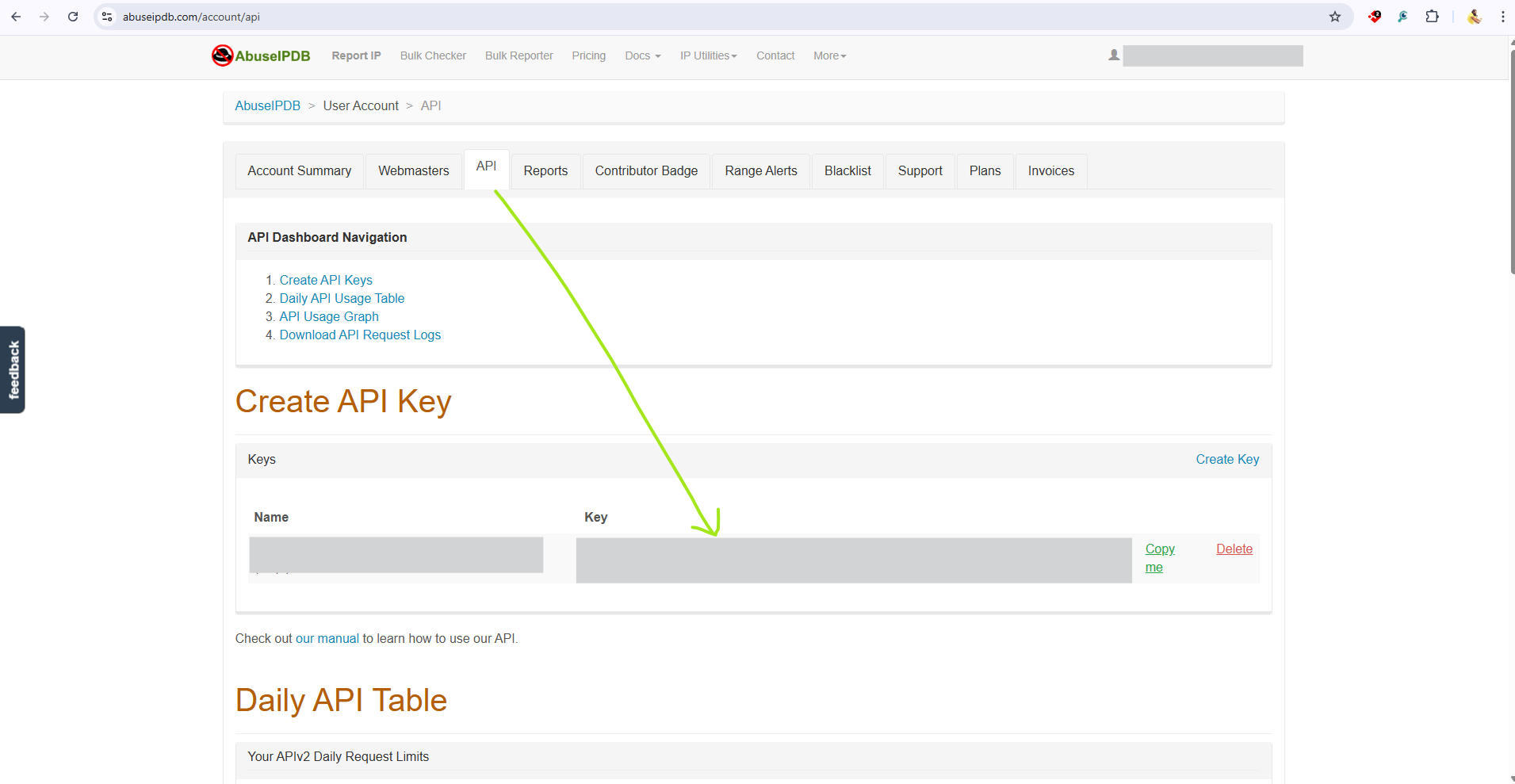
API Key creation - AbuseIPDB
- Signup with AbuseIPDB. https://www.abuseipdb.com/register?plan=free.
- Confirm the verification email, once verified you will be moved to their login page.
- login with your credentials, we can find the API key in the API section as show below in the screenshot.
How to Enable AbuseIPDB Integration with Cybercheck360
Before you begin configuring the Integration you may need to register with AbuseIPDB and Obtain an API Key that will be used in the Later Steps in configuring the integration.
Steps
Login to CyberCheck360.com
- Navigate to
Integrationsfrom the Top Nav Bar - Search for Abuseipdb in search integration.
- Select Configure Abuseipdb Integration.
- Follow
common configuration pointsto complete the integration. - Click on
Save and Enable
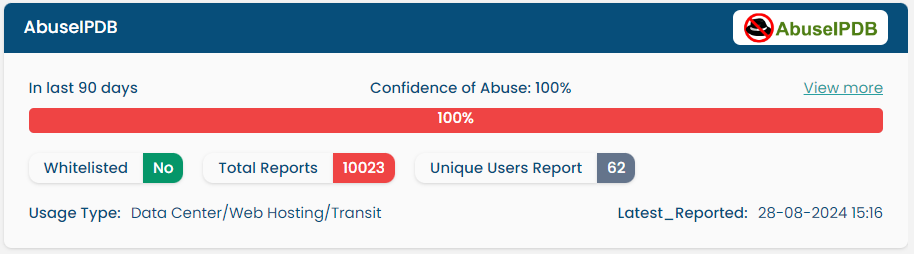
Result of Abuseipdb after Integration
Virustotal
Virus Total is an online service that analyses suspicious files and URLs to detect types of malware and malicious content using antivirus engines and site scanners. It provides an API that allows users to access the information generated by VirusTotal.
API Key creation - Virustotal
- Signup with Virustotal. https://www.virustotal.com/gui/join-us.
- Confirm the verification email, once verified you will be moved to their login page.
- After login, we can find the API key in the API section as show below in the screenshot.

How to Enable VirusTotal Integration with Cybercheck360
Before you begin configuring the Integration you may need to register with Virustotal and Obtain an API Key that will be used in the Later Steps in configuring the integration. {.is-info}
Steps
Login to CyberCheck360.com
- Navigate to Integrations from the Top Nav Bar
- Search for Virustotal in search integration.
- Select Configure Virustotal Integration.
- Follow
common configuration pointsto complete the integration.
- Click on
Save and Enable
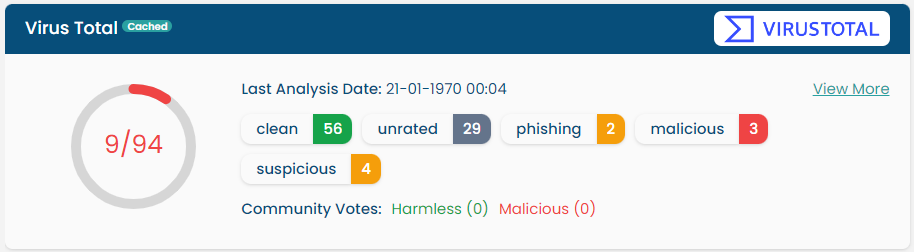
Result of VirusTotal after Integration
AlienVault OTX
OTX Open Threat Exchange is the neighbourhood watch of the global intelligence community. It enables private companies, independent security researchers, and government agencies to openly collaborate and share the latest information about emerging threats, attack methods, and malicious actors, promoting greater security across the entire community.
How to Enable OTX Integration with Cybercheck360
Before you begin configuring the Integration you may need to signup with OTX and Obtain an API Key that will be used in the Later Steps in configuring the integration.
Steps
Login to CyberCheck360.com
- Navigate to Integrations from the Top Nav Bar
- Search for AlienVault OTX in search integration.
- Select Configure AlienVault OTX Integration.
- Follow
common configuration pointsto complete the integration. - Click on
Save and Enable
Result of AlienVault OTX after Integration
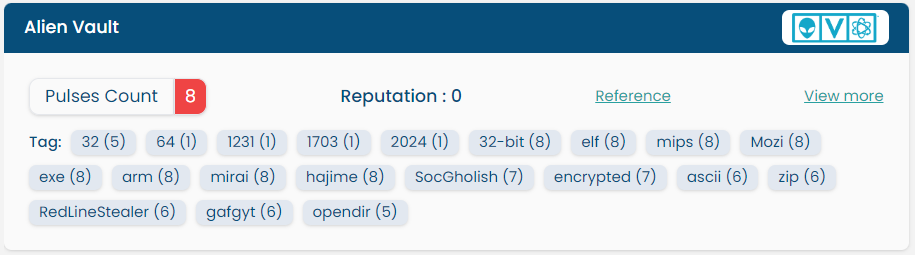
Pulsedive
Pulsedive is a threat intelligence platform that aggregates, enriches, and correlates threat data from a wide variety of open-source, commercial and community feeds. It provides real-time insights into indicators of compromise (IOCs), such as domains, IPs, and URLs, helping security teams identify, investigate, and respond to threats faster.
API Key creation - Pulsedive
- Signup with Pulsedive. https://pulsedive.com/login/.
- Confirm the verification email, once verified you will be moved to their login page.
- After login, we can find the API key in the Account section as show below in the screenshot.
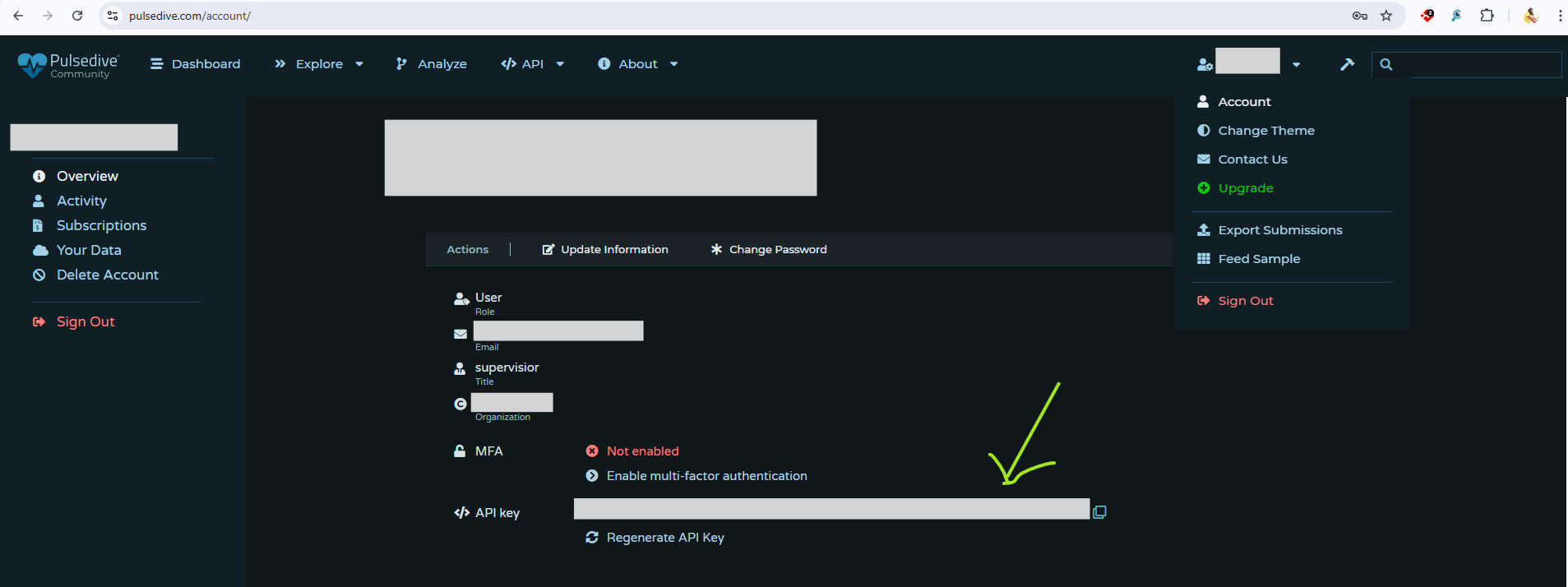
How to Enable Pulsedive Integration with Cybercheck360
Before you begin configuring the Integration you may need to signup with Pulsedive and Obtain an API Key that will be used in the Later Steps in configuring the integration.
Steps
Login to CyberCheck360.com
- Navigate to Integrations from the Top Nav Bar
- Search for Pulsedive in search integration.
- Select Configure Pulsedive Integration.
- Follow
common configuration pointsto complete the integration. - Click on
Save and Enable
Result of Pulsedive after Integration
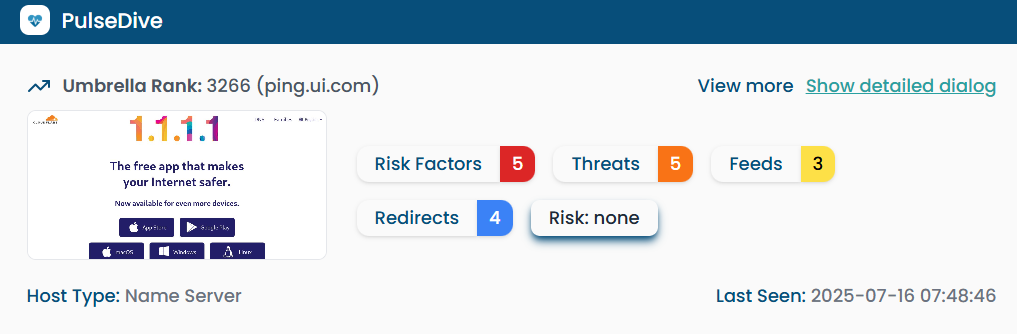
Checkphish
CheckPhish helps detect and block phishing websites in real time. It scans suspicious links and gives instant insights, helping users stay safe from online scams.
API Key creation - Checkphish
- Signup with Checkphish. https://app.checkphish.ai/sign-up.
- Confirm the verification email, once verified you will be moved to their login page
- After login, we can find the API key in the Profile information section as show below in the screenshot.
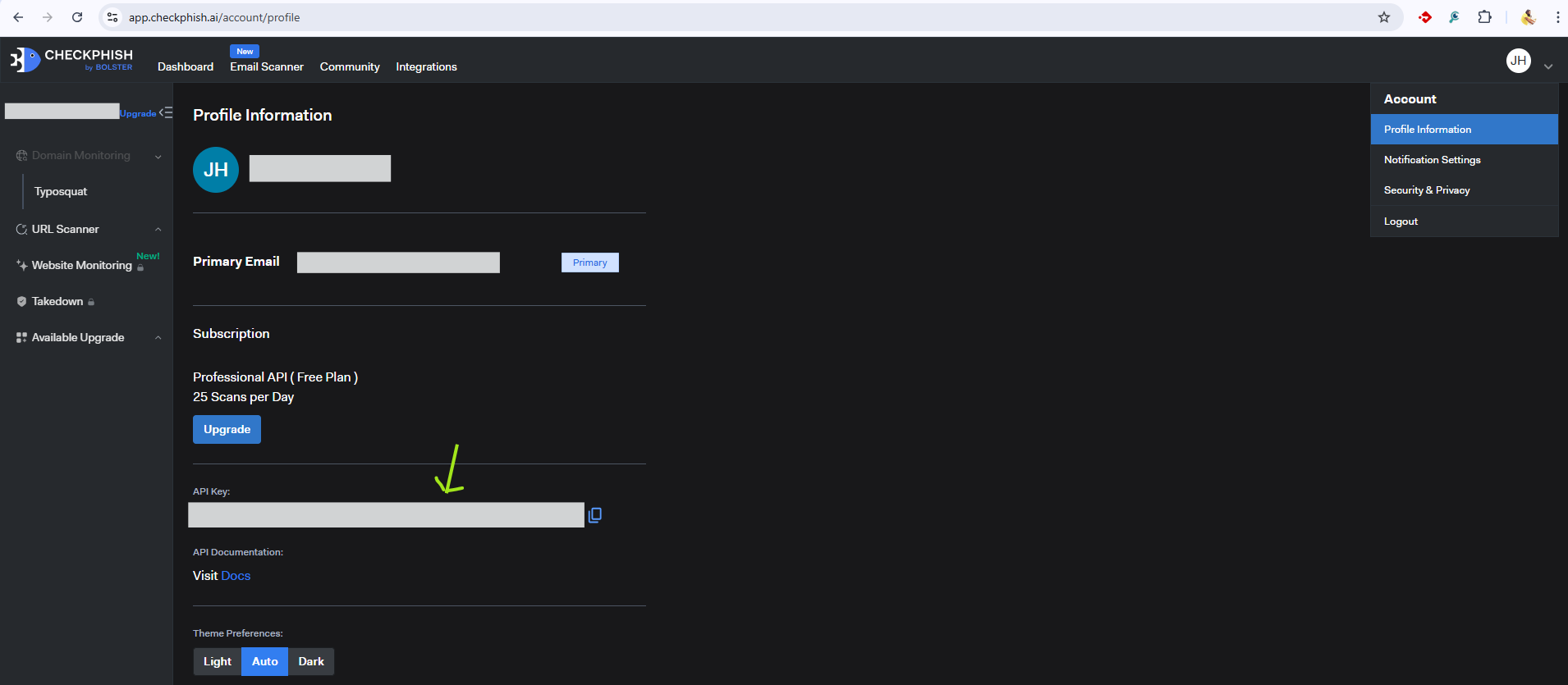
How to Enable CheckPhish Integration with Cybercheck360
Before you begin configuring the Integration you may need to signup with CheckPhish and Obtain an API Key that will be used in the Later Steps in configuring the integration.
Steps
Login to CyberCheck360.com
- Navigate to Integrations from the Top Nav Bar
- Search for Checkphish in search integration.
- Select Configure Checkphish Integration.
- Follow
common configuration pointsto complete the integration. - Click on
Save and Enable
Result of CheckPhish after Integration
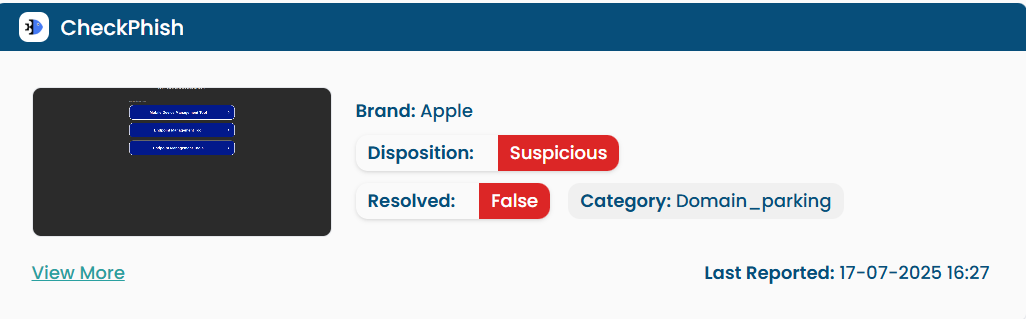
MISP
MISP (Malware Information Sharing Platform) is an open-source tool that helps to share and collect threat intelligence. it is a service managed on the client’s infrastructure.
SetUp MISP Infrastructure
- Deploy MISP on your own environment (on-premises or cloud VM).
- Configure the required components (web application, database, background workers, certificates, etc.).
Generate an API Key in MISP
- Once MISP is operational, each user or integration can generate an API key from the MISP user interface.
- This API key is used to authenticate and securely access MISP data programmatically.
How to Enable MISP Integration with Cybercheck360
Before you begin configuring the Integration you may need to signup with MISP and Obtain an API Key that will be used in the Later Steps in configuring the integration.
Steps
Login to CyberCheck360.com
- Navigate to Integrations from the Top Nav Bar
- Search for MISP in search integration.
- Select Configure MISP Integration.
- Follow
common configuration pointsto complete the integration. - Add your Custom Endpoint URL.
- Click on
Save and Enable
Result of MISP after Integration
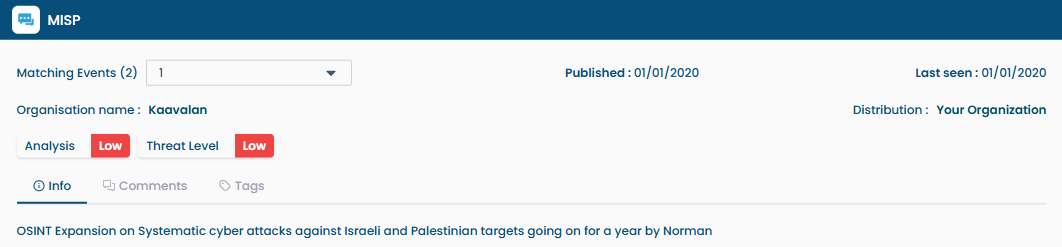
IPqualityscore
IP Quality Score is a platform that helps assess the reputation and risk of IP addresses, emails, and devices. It allows organizations to detect fraudulent activity and make smarter security decisions.
API Key creation - IPqualityscore
- Signup with IPqualityscore. https://www.ipqualityscore.com/create-account.
- Confirm the verification email, once verified you will be moved to their login page
- After login, we can find the API key in the Dashboard -> Setting & Account Management section as show below in the screenshot.
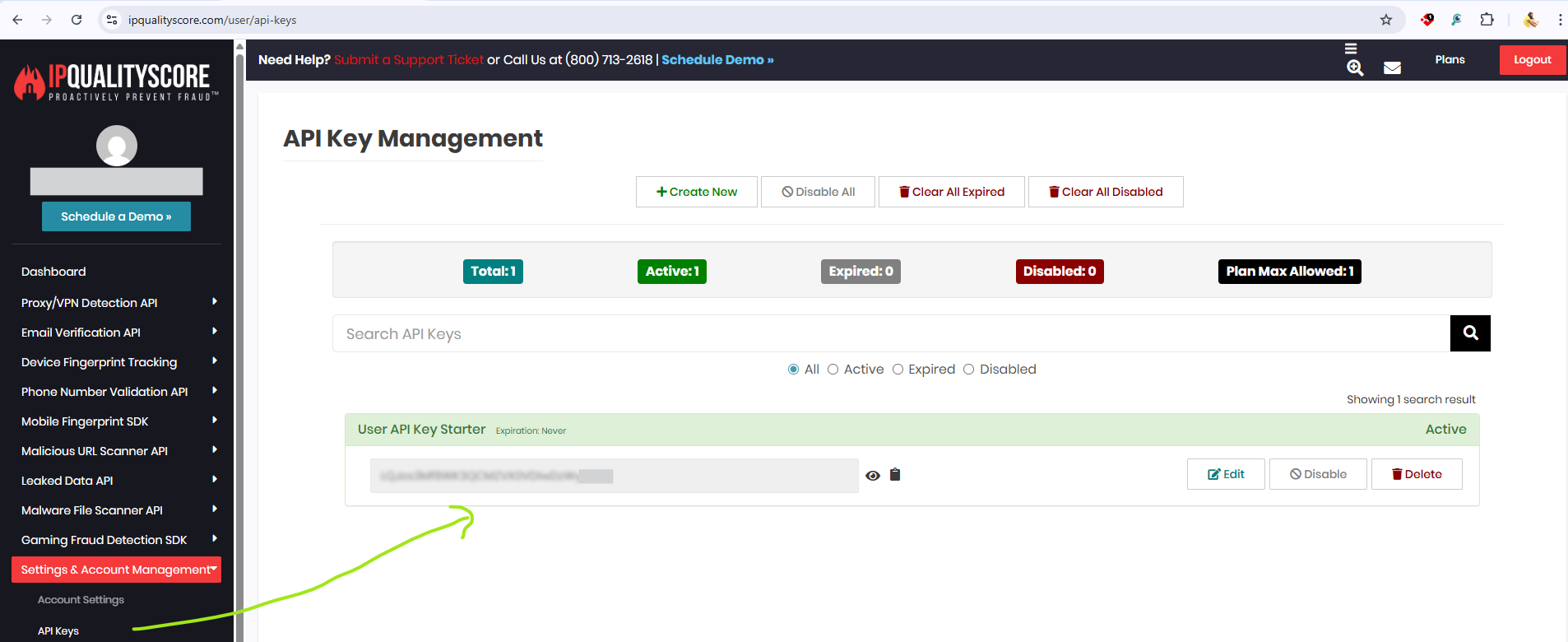
How to Enable IP Quality Score Integration with Cybercheck360
Before you begin configuring the Integration you may need to signup with IP Quality Score and Obtain an API Key that will be used in the Later Steps in configuring the integration.
Steps
Login to CyberCheck360.com
- Navigate to Integrations from the Top Nav Bar
- Search for IPqualityscore in search integration.
- Select Configure IPqualityscore Integration.
- Follow
common configuration pointsto complete the integration. - Click on
Save and Enable
Result of IP quality score after Integration

IPVoid
API void is a product under IP Void that provides IP, domain, and URL reputation data through an easy-to-use API. It helps organizations detect suspicious or malicious entities and strengthen their security decisions.How to Enable IP void Integration with Cybercheck360
API Key creation - IP Void
- Signup with apivoid. https://dash.apivoid.com/login/.
- Confirm the verification email, once verified you will be moved to their login page
- After login, we can find the API key in the Dashboard -> Api Keys section as show below in the screenshot.
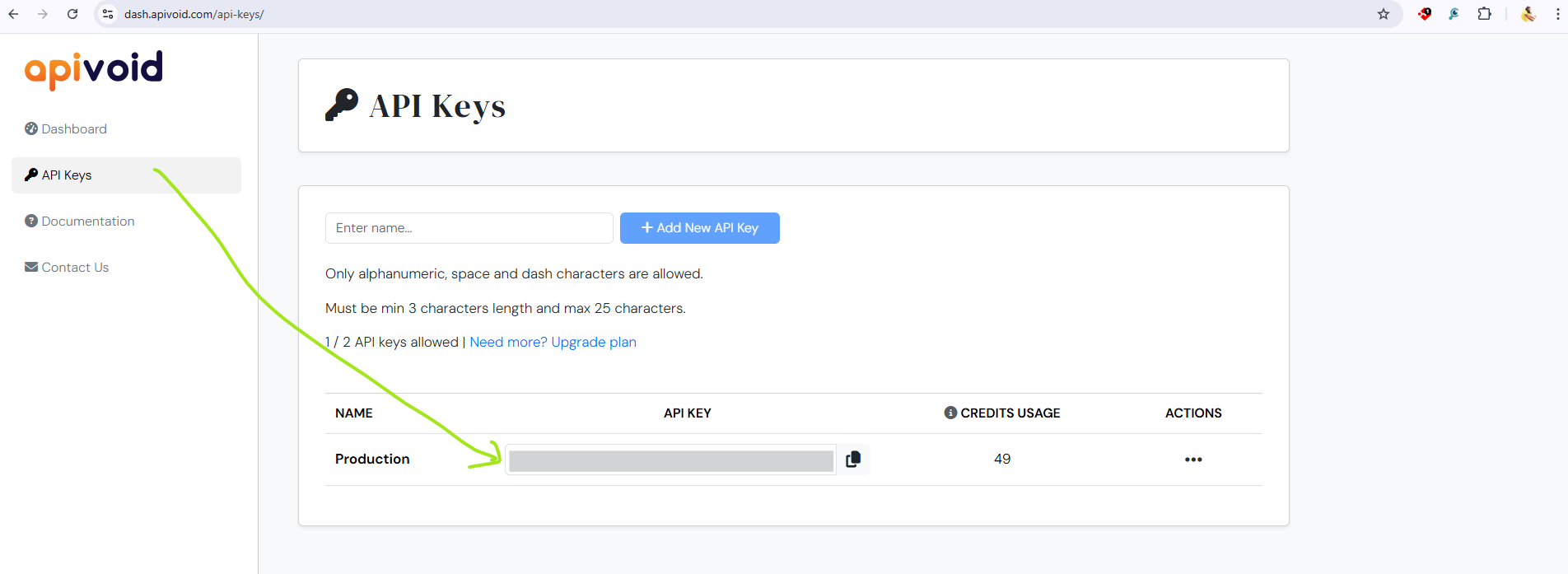
How to Enable IP Void Integration with Cybercheck360
Before you begin configuring the Integration you may need to signup with IP Void and Obtain an API Key that will be used in the Later Steps in configuring the integration.
Steps
Login to CyberCheck360.com
- Navigate to Integrations from the Top Nav Bar
- Search for IP Void in search integration.
- Select Configure IP Void Integration.
- Follow
common configuration pointsto complete the integration. - Click on
Save and Enable
Result of IP Void after Integration

IBM X-Force
IBM X-Force is a threat intelligence platform that provides insights into global security risks. It helps organizations identify malicious IPs, domains, and vulnerabilities, enabling faster detection and stronger defense against cyber threats.
How to Enable IBM X-Force Integration with Cybercheck360
Before you begin configuring the Integration you may need to signup with IBM X-Force and Obtain an API Key that will be used in the Later Steps in configuring the integration.
Steps
Login to CyberCheck360.com
- Navigate to
Integrationsfrom the Top Nav Bar - Search for IBM X-Force in search integration.
- Select Configure IBM X-Force Integration.
- Follow
common configuration pointsto complete the integration. - Click on
Save and Enable
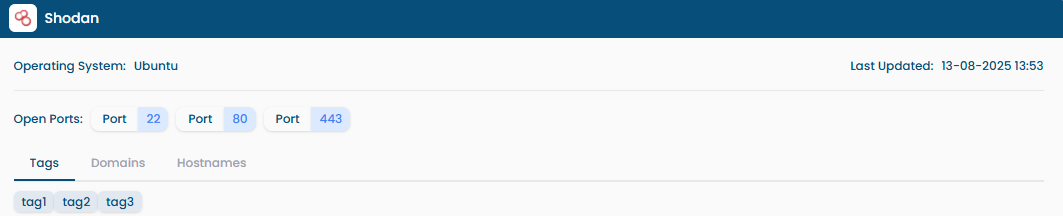
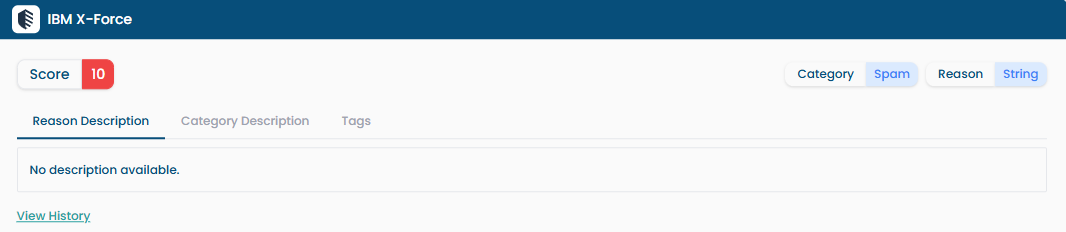
Result of Shodan after Integration
Shodan
Shodan helps users discover exposed devices, identify vulnerabilities, enrich threat intelligence with context, and monitor their attack surface.
API Key creation - Shodan
- Signup with Shodan. https://account.shodan.io/login.
- Confirm the verification email, once verified you will be moved to their login page
- After login, we can find the API key in the Account overview -> Api Keys -> Show section as show below in the screenshot.

How to Enable Shodan Integration with Cybercheck360
Before you begin configuring the Integration you may need to signup with Shodan and Obtain an API Key that will be used in the Later Steps in configuring the integration.
Steps
Login to CyberCheck360.com
- Navigate to Integrations from the Top Nav Bar
- Search for shodan in search integration.
- Select Configure shodan Integration.
- Follow
common configuration pointsto complete the integration. - Click on
Save and Enable
Result of Shodan after Integration